

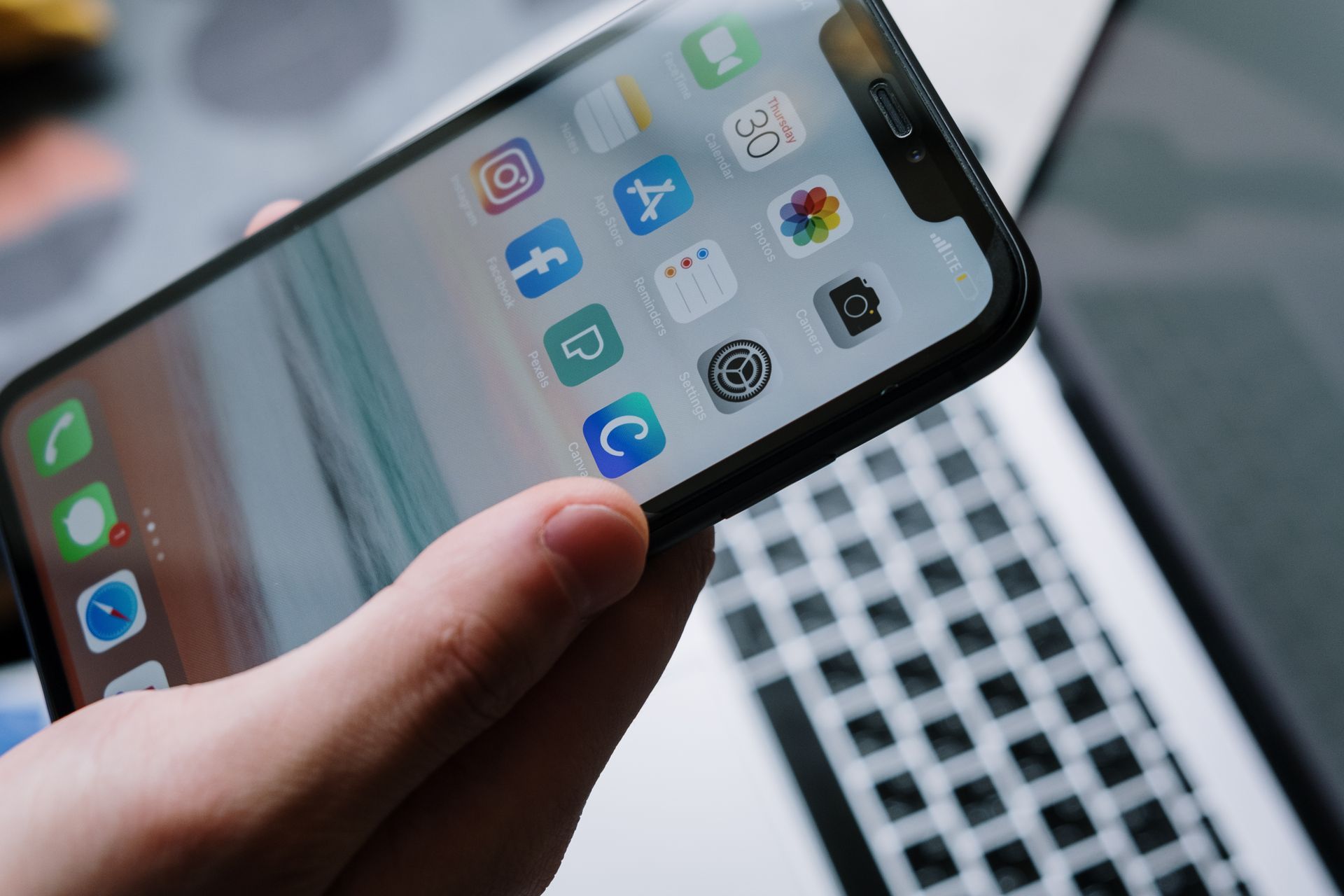
Your iPhone warns you that storage is almost full at the worst possible moment. You are trying to take a photo, update an app, or record a short video, and the phone refuses to cooperate. The good news is that you do not have to delete your favorite photos to fix the problem. Most iPhones hold a surprising amount of hidden clutter, and a careful cleanup can recover several gigabytes in less than an hour.
Learning how to free up storage on iPhone without deleting photos is about working smarter, not deleting memories. You can offload apps you rarely use, clear temporary files, move large videos to the cloud, and remove old messages and downloads. This guide walks through each step in a safe order, so you keep what matters and remove only what you no longer need.
Why Your iPhone Storage Fills Up So Fast
Photos and videos take up the most space for most people, but they are rarely the only problem. Apps grow larger over time as they store cached data, offline maps, downloaded music, and chat history. System files also grow after updates, and some apps keep old files long after you stop using them. A phone with 64GB or 128GB can feel full faster than you expect, especially if you record video in high quality.
Another common cause is duplicate content. You may have the same video saved in Photos, in a messaging app, and in a cloud folder. Screenshots, screen recordings, and burst photos also add up quickly. Before you delete anything, it helps to understand where the space is going, because the fix for a full app cache is different from the fix for a large video library.
Check What Is Really Using Your Storage
Start by opening Settings, then General, then iPhone Storage. Your phone will show a colored bar at the top and a list of apps below it, sorted by size. Give the screen a few seconds to finish calculating, because the numbers can change as the phone scans. Tap any app to see how much space the app itself uses and how much space belongs to its documents and data.
Look first for the largest items. A video app may hold several gigabytes of downloaded shows, a messaging app may store years of photos and videos, and a map app may hold offline maps for places you no longer visit. Write down the top five space users. Those apps will give you the biggest return for the least effort, and they are the best place to start your cleanup.
Offload Unused Apps Without Losing Your Data
Offloading is one of the best tools Apple offers, and it is also one of the least understood. When you offload an app, the iPhone removes the app itself but keeps your documents, settings, and login information. When you reinstall the app later, your data is still there. This is very different from deleting an app, which can remove its local data as well.
To offload an app, go to Settings, then General, then iPhone Storage, tap the app, and choose Offload App. You can also turn on the setting to offload unused apps automatically, which helps in the future. Start with games, travel apps, shopping apps, and tools you use only a few times a year. Keep the apps you use daily, and offload the rest. You can reinstall any offloaded app with one tap from your home screen.
Clear Safari Data and App Caches Safely
Your browser and many apps store temporary files to load faster. Over time, those files can take up hundreds of megabytes. To clear Safari data, go to Settings, then Apps, then Safari, then Clear History and Website Data. Choose a time range that fits your needs, and remember that clearing this data will sign you out of some websites, so make sure you know your passwords first.
For other apps, there is no single clear cache button on iPhone. Instead, open each app and look in its settings for options such as Clear Cache, Manage Storage, or Downloaded Content. Social media, video, and music apps often have these options. If an app offers no way to clear its cache, deleting and reinstalling it can remove the cached data, but only do this if you are sure your account data is saved online.
Free Space in Photos and Videos Without Deleting Photos
This is the section most people care about, because photos are personal. The safest approach is to move your original files to a cloud service and keep smaller, optimized versions on your phone. Turn on iCloud Photos in Settings, then Photos, and choose Optimize iPhone Storage. Your phone will keep smaller versions locally and store the full quality originals in iCloud, which frees space while keeping every photo available.
You can also reduce future growth without deleting anything. Change your camera settings to record video at a lower resolution for everyday clips, and turn off the setting that keeps both a normal photo and a portrait version. Review burst photos and keep only the best shot from each set, and move long videos you want to keep to cloud storage or a computer. These small changes protect your memories and prevent the same problem from returning.
Delete Old Messages, Downloads, and Large Attachments
Messages can store a surprising amount of data. Photos, videos, voice notes, and files sent through Messages and WhatsApp stay on your phone unless you remove them. Open Settings, then General, then iPhone Storage, then Review Large Attachments, and you will see the biggest files in your messages. Delete the ones you no longer need, and save the keepers to Photos or a cloud folder first.
Check your Downloads folder in Files, your Voice Memos, and any podcasts or music you downloaded for offline use. Old podcast episodes, downloaded playlists, and expired files are easy to forget. Set Messages to keep conversations for one year instead of forever if you want an automatic cleanup in the future. This single setting can prevent gigabytes of old attachments from building up again.
When Freeing Space Is Not Enough
Sometimes a cleanup recovers only a little space, because your phone simply has too little storage for the way you use it. If you record a lot of video, download many apps, or keep years of messages, a 64GB phone may always feel tight. In that case, compare the cost of a larger iCloud plan with the cost of a new phone, and think about how long you plan to keep your current device.
If you do decide to change phones, do not choose based on storage alone. A new plan or a different phone can change your monthly cost, your data allowance, and your coverage. Reading a guide to affordable phone plans can help you compare your options before you spend money. A little research now can save you from paying for features you do not need.
Frequently Asked Questions
Can I free up iPhone storage without deleting photos?
Yes, you can free up iPhone storage without deleting photos. Offload unused apps, clear Safari data and app caches, delete large message attachments and downloads, and turn on Optimize iPhone Storage so full quality photos live in iCloud while smaller versions stay on your phone.
Why does my iPhone say storage is full when I have space?
This often happens because the storage screen has not finished updating, or because temporary system files are taking up space. Restart your phone, wait for iPhone Storage to finish calculating, and check for large app caches and downloads. A restart can also clear temporary files that the phone no longer needs.
Does offloading apps delete my data?
No, offloading an app does not delete your documents, settings, or login information. It removes only the app itself, and you can reinstall it later and continue where you left off. Deleting an app is different, because it can remove local data, so use Offload App when you want to keep your data safe.
Conclusion
Freeing up storage on your iPhone does not have to mean losing photos or important files. Start with a storage check, offload the apps you rarely use, clear caches safely, and move large files to the cloud. Review messages, downloads, and old videos, and set up automatic options such as Optimize iPhone Storage so the problem does not return quickly.
Do one section at a time, and check your free space after each step. You will often find that the first few changes recover the most space, and the rest are simple maintenance. With a cleaner phone, your apps will update smoothly, your camera will work when you need it, and your photos will stay safe for years to come.







Leave a Reply